

Taking online bookings
Set the times you are free, accept or turn down booking requests, or use a booking tool you already have.
Buildrok has a built-in booking calendar for appointment trades, plus a simple alternative if you already run your schedule somewhere else. Both options live behind the same idea: customers pick a time on your site, and you stay in control of what gets confirmed.
The built-in booking calendar
On appointment-style templates (cleaning, mobile detailing, landscaping, and barber), the lead form can show live open time slots pulled from your real availability. Customers pick a slot as part of their request instead of writing "sometime next week" in a text box.
Set it up at buildrok.com/app/bookings:
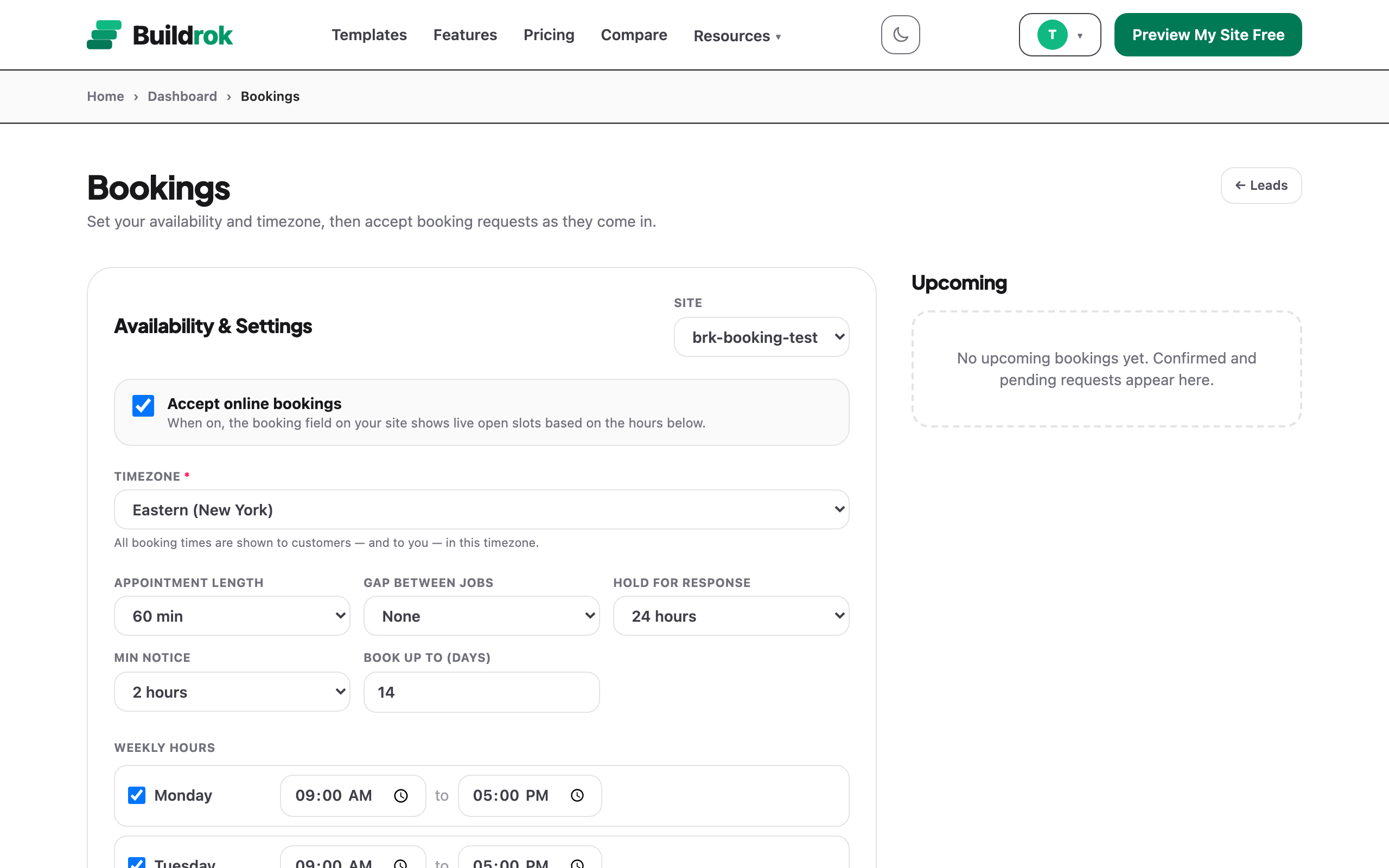
- Pick the site you're configuring (only booking-ready sites appear).
- Turn on Accept Online Bookings.
- Set your timezone. Every time shown to customers, and to you, uses it.
- Fill in your weekly hours, day by day. Closed on Sundays? Just leave the day unticked.
The settings that shape your slots
- Appointment Length. How long a slot runs: 30, 45, 60, 90, or 120 minutes.
- Gap Between Jobs. Buffer time after each appointment for travel and cleanup, up to an hour.
- Hold For Response. How long a requested slot stays reserved while you decide, from 1 hour to 48 hours. If you don't respond in time, the hold expires and the slot reopens.
- Min Notice. Stops same-minute bookings. Require up to a day's notice before the earliest bookable slot.
- Book Up To (Days). How far ahead customers can book, up to 90 days out.
Accepting and declining requests
A booking request is not a confirmed job until you say so. New requests show up two places: the Upcoming list on the Bookings page, and your Leads inbox, where each request carries its requested slot and a status of Pending Your Response, Confirmed, or Declined.
- Accept and the slot locks in. Overlapping requests for the same time can't double-book you; the calendar enforces one job per slot.
- Decline and the slot goes straight back on offer to everyone else.
Either way the customer gets an email with your answer and the time written out in your timezone, so nobody is left guessing whether you're coming. Add a note before you answer and it goes into that email in your own words. If you'd rather ring them yourself, untick Email the customer first.
You'll get the usual lead notifications (email, plus a text if you've set one up) the moment a request arrives, so slow replies don't cost you the job.
Jobs you booked yourself, and days you're not working
Most of your diary never touches your website. Regulars text you, a neighbour stops you on the street, and you take the job there and then. If the calendar doesn't know about those, it will happily sell the same Tuesday morning to a stranger.
Add An Appointment on the Bookings page is where those go. Put in the date, the time and how long it'll take, and it blocks that time exactly like a booking from the site would. The customer's name, their number and a note are all optional, but a note is where the gate code goes.
Tick Block The Whole Day for a holiday, a sick day, or anything else that takes the day off the table. Nothing you add this way emails anyone: the customer already arranged it with you, so an unprompted confirmation would just read like a double-booking. Removing one later puts those hours straight back on offer.
An appointment you add yourself doesn't have to sit inside your opening hours. A Sunday emergency and a Tuesday dentist trip both need blocking, and your weekly hours are about when strangers may book you, which is a different question.
Regulars: booking the whole run at once
Set Repeats when you add an appointment and you can book a regular every week, every 2 weeks or every 4 weeks, up to 52 times in one go. That is a year of Tuesday mornings from one form.
Dates that clash with something already in your calendar are skipped rather than refusing the whole run, and you're told exactly which ones so you can place them by hand. Repeating appointments are tagged in your Upcoming list, and each one gives you two choices: cancel just that visit, or End series to cancel it and every later one at once. Anything already in the past is left alone.
Different jobs take different lengths
Appointment length above sets your default. If a deep clean takes three hours and an oven takes forty-five minutes, set a duration on each service in the editor and the booking form does the rest: the customer picks the job first, and only the times long enough for it are offered.
This is separate from the "2-3 hrs" text on your service cards, and on purpose. That line is for customers to read; the duration is what actually gets blocked out. You're free to advertise "2-3 hrs" and reserve a full three hours.
Start times still follow your normal grid. A three-hour job on a 9-to-5 day is offered at 9:00, 9:30, 10:00 and so on, not just three times a day.
Reminders, and letting customers change their own booking
With Remind customers the day before switched on, everyone with a confirmed appointment gets one email the day before with the time and a button to move or cancel it.
That button is the part that pays for itself. A customer who can move an appointment in one tap usually does; one who has to write an email and wait often just isn't there when you arrive. When they change something you get an email straight away, and the old time goes back on offer automatically so somebody else can take it. The same link is in every confirmation email.
Seeing your jobs in your own calendar
Under the settings there's Create calendar link. Copy that URL and add it to Google Calendar, Apple Calendar or Outlook as a subscribed calendar, and your bookings appear next to everything else in your life. It keeps itself up to date, so a booking you confirm this afternoon turns up on your phone without you doing anything.
Requests you haven't answered yet show up marked [Requested] so you never mistake one for a job that's actually on. Treat the link like a password: anyone who has it can see your bookings. If it ends up somewhere it shouldn't, Replace link makes the old one dead immediately, and Turn off stops the feed entirely.
Prefer Calendly or another tool?
If you already run your diary through Calendly, BookingKoala, or a similar scheduler, skip the built-in calendar entirely:
- In the editor, open the sidebar's Content tab.
- Toggle on Online Booking.
- Paste your booking URL and save.
Your site gets a Book Now button that sends customers straight to your existing scheduling page. It works with any tool that gives you a booking link.