

Editing your site
How editing works: click any text to change it, swap section layouts, set your main photo, fill the gallery, and use the side panel.
The Buildrok editor is the live preview itself. There is no separate admin screen for content: you edit the site by clicking on the site. This guide walks through every tool, in the order you'll meet them.
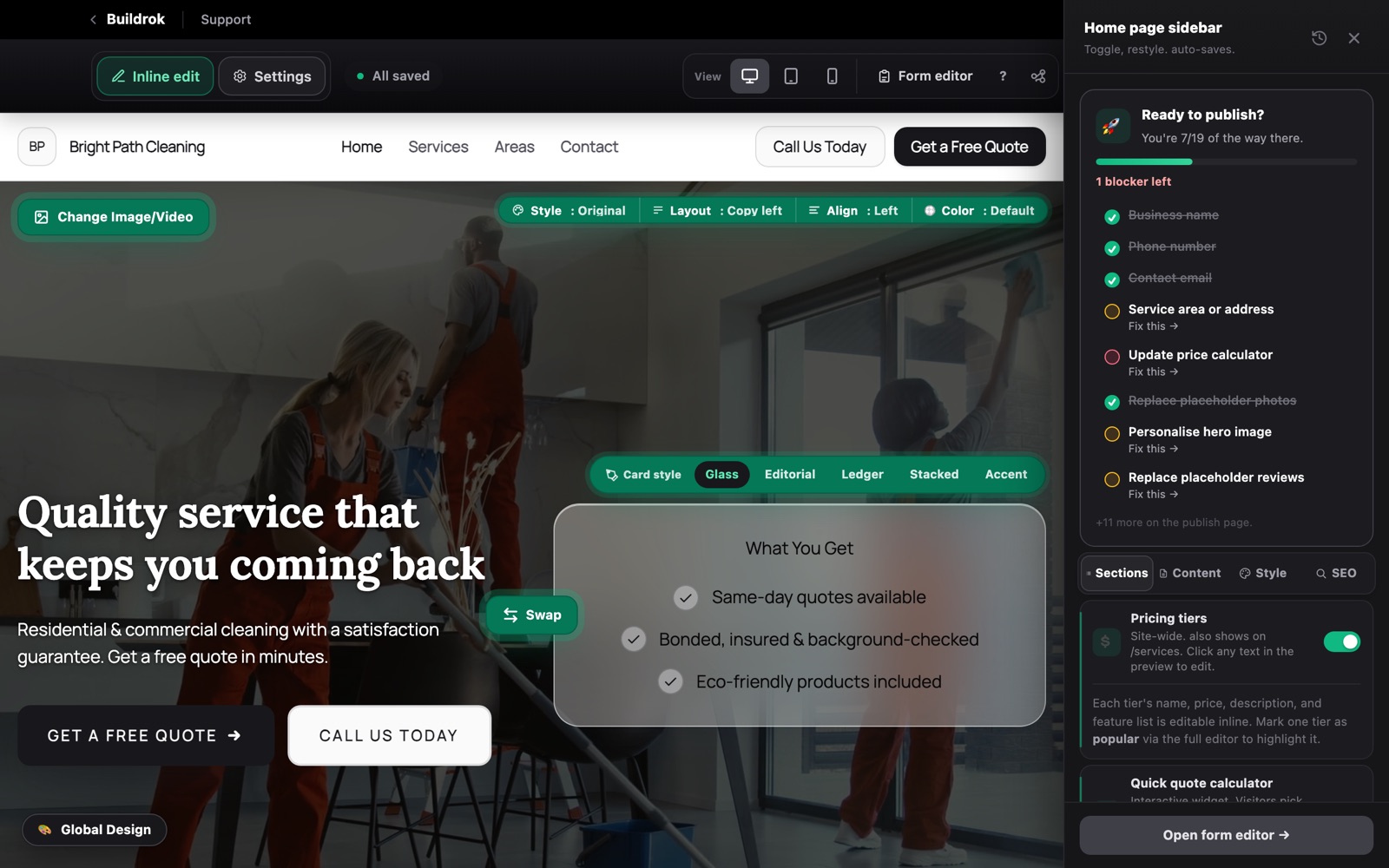
Click anything to edit it
Glowing text and images are editable. Click any headline, paragraph, button label, or photo to change it right there on the page. Multiline text like service descriptions opens a larger box. Everything saves automatically as you go.
Inside any text box you'll find an AI button that drafts the words for you. It's handy when you know what a section should say but don't want to write it from scratch.
Restyle any section with the layout chip
Every section has a Layout chip in its top corner. Open it to see the layout options for that section, hover an option to preview the new look instantly on the page, then click the one you like to keep it. Each section carries its own set of layouts, so a gallery offers different arrangements than a footer or a quote form.
The hero gets the same treatment: you can switch between split, centered, and stacked arrangements, so the same content can read like a completely different design.
The photo at the top of your site
The big banner at the top of your site can run a background photo or a background video. Click the hero to open the hero background panel, where you can:
- Upload your own photo or pick one from the built-in stock image library.
- Set the focal point, so the important part of the photo stays visible on every screen size.
- Adjust the overlay darkness slider so your headline stays readable over the image.
The photo gallery
Every template includes a gallery section for your work photos. Add photos through the sidebar's Content tab, then use the gallery's Layout chip to pick how they're arranged. The gallery works identically on desktop and mobile, and ships with trade-appropriate placeholder photos until you add your own.
The sidebar: your control panel
The panel on the right is where you run the whole site. It has three tabs plus the section list:
- Sections shows or hides parts of the page. Don't want a testimonials block? Toggle it off; nothing is deleted, and you can bring it back any time.
- Content adds your photos, Google reviews, video, and online booking. Add-ons like the photo gallery, map, and reviews are included on every plan and toggle on from here.
- Style sets your brand. It works together with Colors & Typography at the bottom left, where you pick your colors and fonts in one place. That panel leads with six colors and four sets of type; the links at the bottom of each open every color in the library and every font, size and text color. Hover any swatch or font to preview it across the whole site before you commit.
- SEO sets your page title, description, and social share card so customers can find you on Google. More on this in SEO And Showing Up On Google.
Check every screen size
Use the Desktop, Tablet, and Mobile switcher at the top of the editor to make sure your site looks sharp on every screen. Most local service customers find you on a phone, so it's worth a quick pass on Mobile before publishing.
A safety net for your edits
Changed your mind? Press Cmd+Z to undo and Cmd+Shift+Z to redo (Ctrl on Windows). The clock icon in the panel opens Version History, where you can restore any earlier autosave of the draft.
Preview and share
Tap Preview at the bottom right to hide the editing tools and see the site exactly as visitors will. The Share button at the top creates a private preview link you can text to a partner or friend for a second opinion. They don't need an account to view it.
Publish when you're ready
There's no rush; your preview stays free while you work. When everything looks right, hit Publish to put your site live and start collecting leads. You can keep editing after publishing, and push updates to the live site whenever you like.